

Dex
Device Agent · Deployment

Deploy the Dex Device Agent on macOS

5–35 min (by method)3 phases · 6 steps
You'll useDexmacOS
Before you begin
  • An admin account (sudo) on targets, or an MDM/RMM agent that runs as root.
  • macOS 12 (Monterey) or later — the pkg is universal (Apple Silicon + Intel).
  • Outbound HTTPS (TCP 443) from Macs to https://dex365.ai and download.dex365.ai.
  • The tenant's enrollment token from the Dex admin portal.
Phase 1
Prepare Dex
Enable the Mac Device app, then generate an enrollment token. One tenant-agnostic pkg for every tenant — the token is always delivered separately.

Enable the Mac Device app

1 min
In Dex

Dex only manages Macs when the Mac Device app is enabled in the App Store. Turn it on before enrolling devices — otherwise the agent connects but Dex has no tools or skills to act on it.
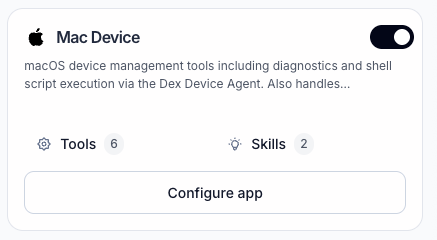
App Store → Mac Device — the toggle (top right) is on. Click it to enable if it's off. Screenshot
App Store → Mac Device — the toggle (top right) is on. Click it to enable if it's off.
Configure app (optional)
Configure app on the card opens the app's tools, skills, and autonomy settings. The defaults are fine to start — you can tune what Dex is allowed to do per tool later.

Generate an enrollment token in Dex

2 min
In Dex

Sign in to the Dex management console, then go to Settings → Devices. Under Enrollment tokens, generate a new token (or reveal an existing one) — this is the value you'll substitute for {{ENROLLMENT_TOKEN}} in every method below. The pkg itself is tenant-agnostic; the token is always delivered separately.
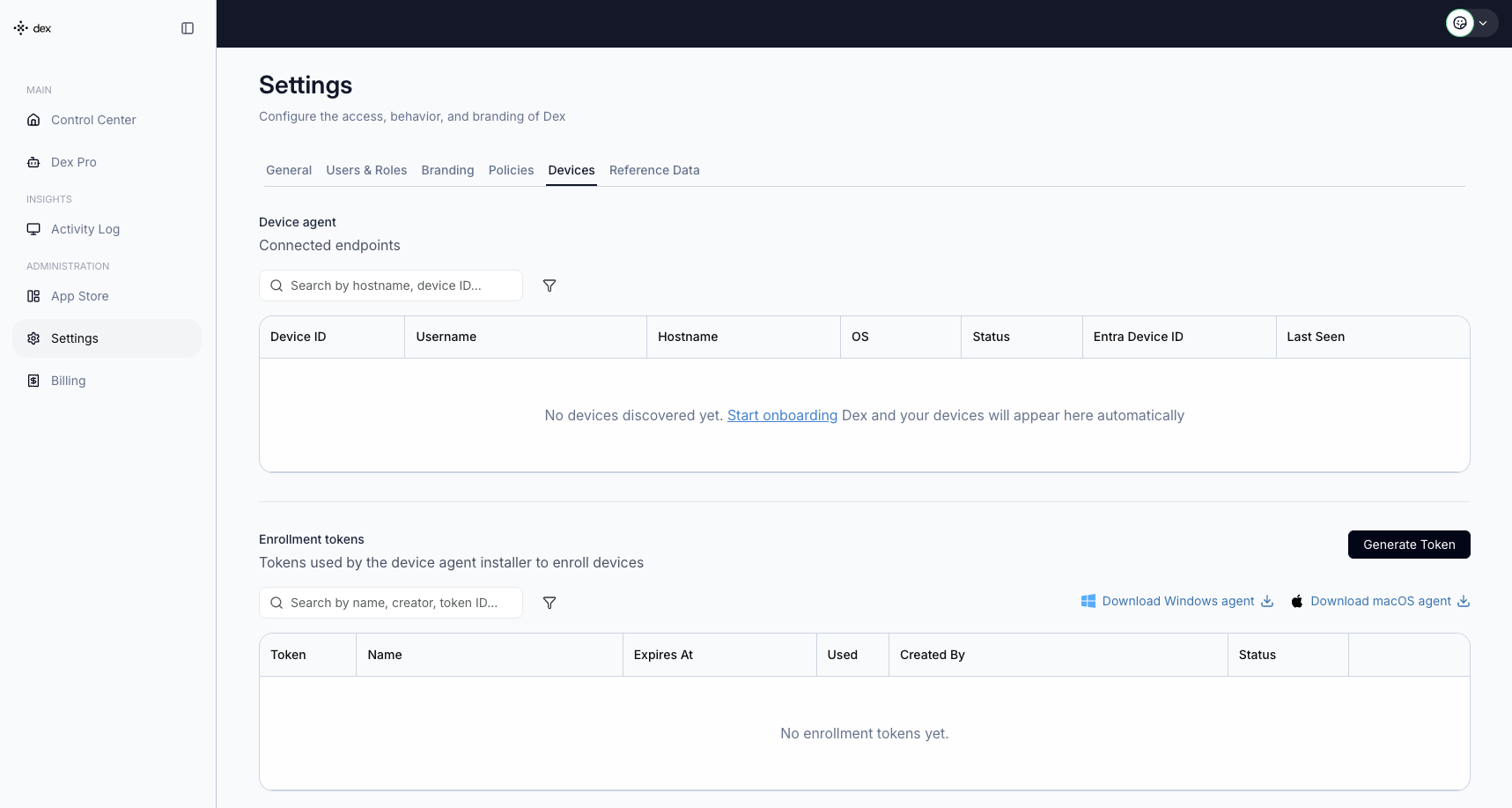
Settings → Devices on a fresh tenant: Connected endpoints is empty until devices enroll; click Generate Token under Enrollment tokens. Screenshot
Settings → Devices on a fresh tenant: Connected endpoints is empty until devices enroll; click Generate Token under Enrollment tokens.
A generated token in the list — reveal its value with the eye icon in the Token column. The same panel has Download macOS agent. Screenshot
A generated token in the list — reveal its value with the eye icon in the Token column. The same panel has Download macOS agent.
Pkg download URL (signed + notarized, universal)
https://download.dex365.ai/macos/DexDeviceAgent.pkg
Managed preferences domain (EnrollmentToken, optional BaseURL / UserUPNOverride)
com.sysaid.dexdeviceagent
How the token reaches each Mac
Three mechanisms: a configuration profile setting EnrollmentToken in the com.sysaid.dexdeviceagent managed-preferences domain (best for MDM fleets — the agent re-reads it every ~30 seconds, so token rotation is just a profile re-push), the CLI (sudo DexDeviceAgent --configure --token …, best for SSH and RMM scripts), or the configurator app that opens after an interactive Finder install. Pick the one that matches your method below.
Install order never matters
If the pkg installs before a token is available, the daemon idles, logs "Waiting for enrollment configuration", and retries every 30 seconds until one appears.
Pre-configured pkg
The Dex admin portal can also generate a per-tenant pre-configured pkg with the token baked in. With that artifact, installing is the only step — everything else in this guide is identical.
macOS extra: privacy (TCC) permissions
Full Disk Access, Accessibility, and Screen Recording power protected-path diagnostics and Computer Use features. Only an MDM-delivered PPPC profile can pre-grant them — scripts and RMMs cannot. Without it, macOS prompts the logged-in user on first use. Diagnostics and enrollment work fine without them.
Treat the token as a secret
Prefer your platform's secret store over hardcoding it in shared scripts, and scope per-tenant .mobileconfig files to the right tenant only. After enrollment the agent exchanges the token for a per-device secret (root-owned) and never logs either. You can Revoke a token any time from the same list.
Phase 2
Deploy
Install the pkg and deliver the token with your chosen method.
How do you want to deploy?
The steps below change based on your choice — both paths end at the same place.

Install and enroll the agent

~5 min
Now in macOS

Install on one Mac — interactively in Finder with the configurator app, or headless from a terminal or SSH session.

How are you installing?
Configurator closed or didn't appear?
Relaunch it from /Applications/Dex Device Agent/DexAgentConfigurator.app. If it still doesn't open, the install came from a non-GUI session or a token is already configured — use sudo … --configure instead.

Grant privacy permissions (TCC)

~2 min
In macOS

On a manually installed Mac there is no MDM to pre-grant TCC permissions, so macOS prompts the logged-in user the first time the agent needs each one — and some grants must be flipped by hand. Diagnostics and enrollment work without them; Computer Use features (screenshots, input control) and protected-path diagnostics need them.

Fleets avoid the prompts entirely
An MDM-delivered TCC profile pre-grants all three permissions silently — switch to the MDM deployment path for fleet rollouts.
"Background items added" notification (macOS 13+)
Cosmetic — it can be suppressed fleet-wide with the background-items profile via MDM.

Reconfigure, upgrade, or uninstall

as needed
In macOS

Reconfigure an enrolled Mac by running /Applications/Dex Device Agent/DexAgentConfigurator.app (it detects the existing enrollment and offers Reconfigure) or sudo … --configure. To upgrade, install the new pkg the same way — it upgrades in place, restarting the daemon while preserving enrollment and config.yaml. Uninstall with /Applications/Dex Device Agent/Uninstall Dex Device Agent.app, or from the terminal with the commands below.

Uninstall (terminal)
sudo "/Library/Application Support/DexDeviceAgent/DexDeviceAgent" --uninstall
sudo rm -rf "/Library/Application Support/DexDeviceAgent" "/Library/Logs/DexDeviceAgent" \
    "/var/run/dexagent" "/var/log/dexdeviceagent.log" "/var/log/dexdeviceagent.err" \
    "/tmp/dexdeviceagent-helper.log" "/tmp/dexdeviceagent-helper.err"
sudo profiles remove -identifier com.sysaid.dexdeviceagent.config 2>/dev/null
Uninstall removes the device secret
Both uninstall paths remove the agent, config, and logs including the device secret — the Mac must re-enroll if reinstalled. Also unscope/remove any MDM-pushed profiles.
Phase 3
Verify
Confirm the daemon is running, configured, and enrolled.

Verify the deployment

~2 min
In macOS

Use these deterministic checks after any method. The end-to-end confirmation is the device appearing in the Dex admin portal within a minute of enrollment.
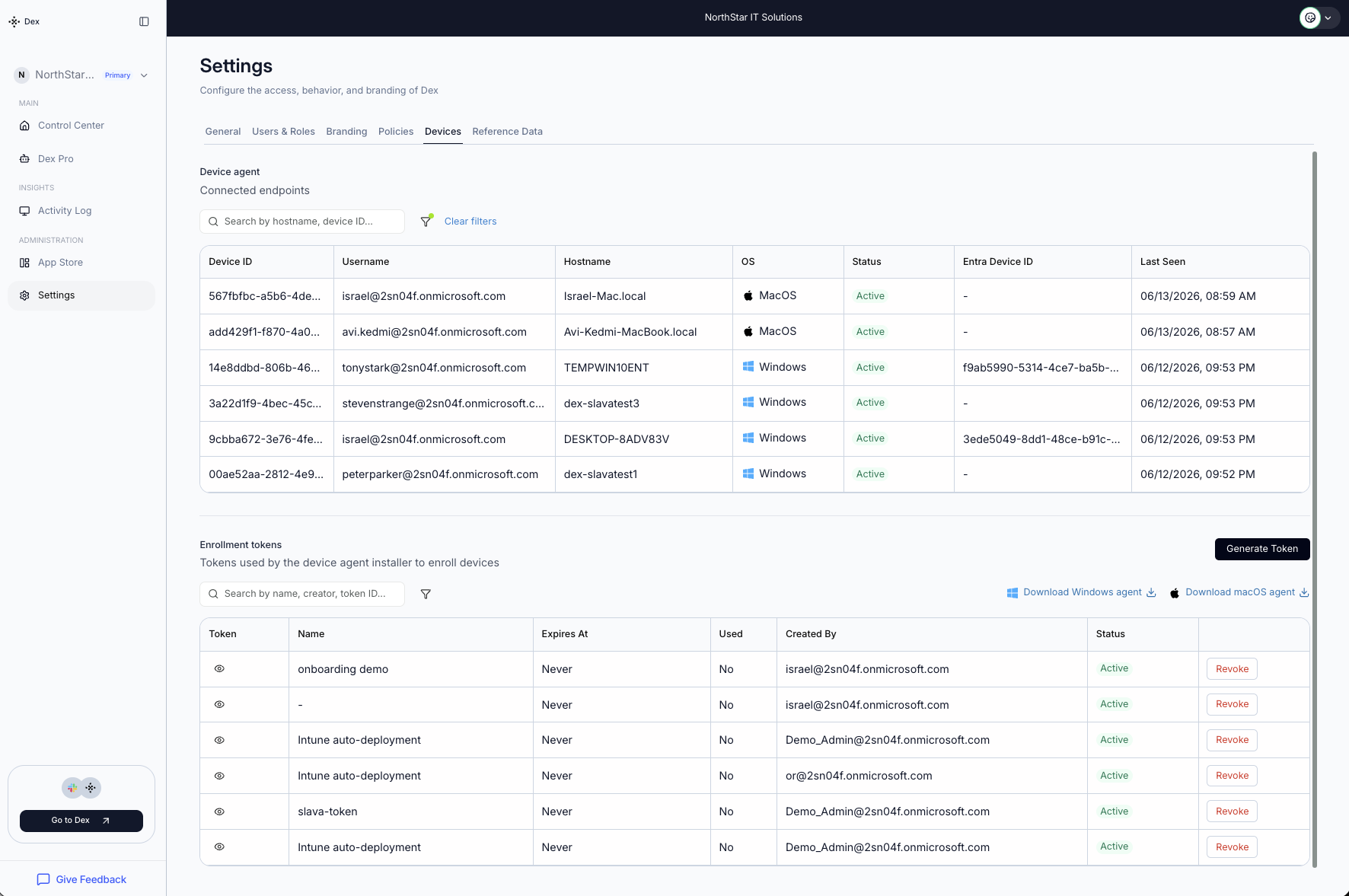
Success: enrolled Macs appear under Settings → Devices → Connected endpoints (MacOS rows shown Active), and used tokens are marked in the Enrollment tokens list below. Screenshot
Success: enrolled Macs appear under Settings → Devices → Connected endpoints (MacOS rows shown Active), and used tokens are marked in the Enrollment tokens list below.
Verification commands (bash)
# 1. Installed: binary present
test -x "/Library/Application Support/DexDeviceAgent/DexDeviceAgent" && echo installed

# 2. Daemon loaded and running
sudo launchctl list | grep com.sysaid.dexdeviceagent       # row with a PID = running

# 3. Configured: exit 0 iff an enrollment token or device secret exists
sudo "/Library/Application Support/DexDeviceAgent/DexDeviceAgent" --has-config && echo configured

# 4. Enrolled: after success the token is exchanged for a device_secret
#    in config.yaml (within ~30 s)
sudo grep -Eq 'device_secret:[[:space:]]*"?[^"[:space:]]' \
    "/Library/Application Support/DexDeviceAgent/config.yaml" && echo enrolled

# 5. If a profile delivers the token: confirm managed preferences landed
defaults read "/Library/Managed Preferences/com.sysaid.dexdeviceagent" 2>/dev/null

# 6. Recent logs, if anything above failed
sudo tail -50 /var/log/dexdeviceagent.log /var/log/dexdeviceagent.err
"Waiting for enrollment configuration" in the log
No token has reached the Mac. If an MDM profile delivers it, check profiles list and defaults read /Library/Managed\ Preferences/com.sysaid.dexdeviceagent — and the profile scoping in the MDM. Otherwise run sudo … --configure --token ….
Enrollment 401/403 in the log
Wrong or expired token — get a fresh one from the Dex admin portal, re-push the profile or re-run --configure.
Daemon flapping (non-zero exit, no PID)
Read /var/log/dexdeviceagent.err — usually a proxy/firewall blocking HTTPS 443. Fix, then sudo launchctl kickstart -k system/com.sysaid.dexdeviceagent.
TCC prompts still appear / Computer Use fails
The TCC profile wasn't delivered, the device isn't supervised/UAMDM, or the profile's CodeRequirement doesn't match the installed binary — re-extract it with codesign and re-push.

Macs enrolled and reporting

The agent is installed and enrolled, and your Macs show up in the Dex admin portal — Dex can now run diagnostics and remediations on them. Roll the same method out to the rest of the fleet, or set up your Windows machines next.
