

Dex
Device Agent · Deployment

Deploy the Dex Device Agent on Windows

5–30 min (by method)3 phases · 5 steps
You'll useDexWindows
Before you begin
  • Local Administrator rights on targets (or a management platform that runs as SYSTEM).
  • Windows 10 21H2 / Windows Server 2019 or later, x64.
  • Outbound HTTPS (TCP 443) from endpoints to https://dex365.ai and download.dex365.ai.
  • The tenant's enrollment token from the Dex admin portal.
Phase 1
Prepare Dex
Enable the Windows Device app, then generate an enrollment token. One tenant-agnostic MSI for every tenant — the token is always delivered separately.

Enable the Windows Device app

1 min
In Dex

Dex only manages Windows endpoints when the Windows Device app is enabled in the App Store. Turn it on before enrolling devices — otherwise the agent connects but Dex has no tools or skills to act on it.
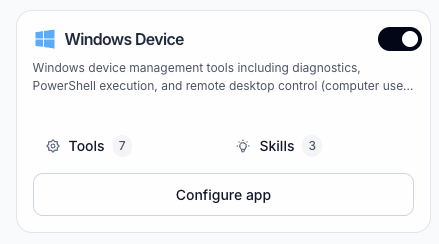
App Store → Windows Device — the toggle (top right) is on. Click it to enable if it's off. Screenshot
App Store → Windows Device — the toggle (top right) is on. Click it to enable if it's off.
Configure app (optional)
Configure app on the card opens the app's tools, skills, and autonomy settings. The defaults are fine to start — you can tune what Dex is allowed to do per tool later.

Generate an enrollment token in Dex

2 min
In Dex

Sign in to the Dex management console, then go to Settings → Devices. Under Enrollment tokens, generate a new token (or reveal an existing one) — this is the value you'll substitute for {{ENROLLMENT_TOKEN}} in every method below. The MSI itself is tenant-agnostic; the token is always delivered separately.
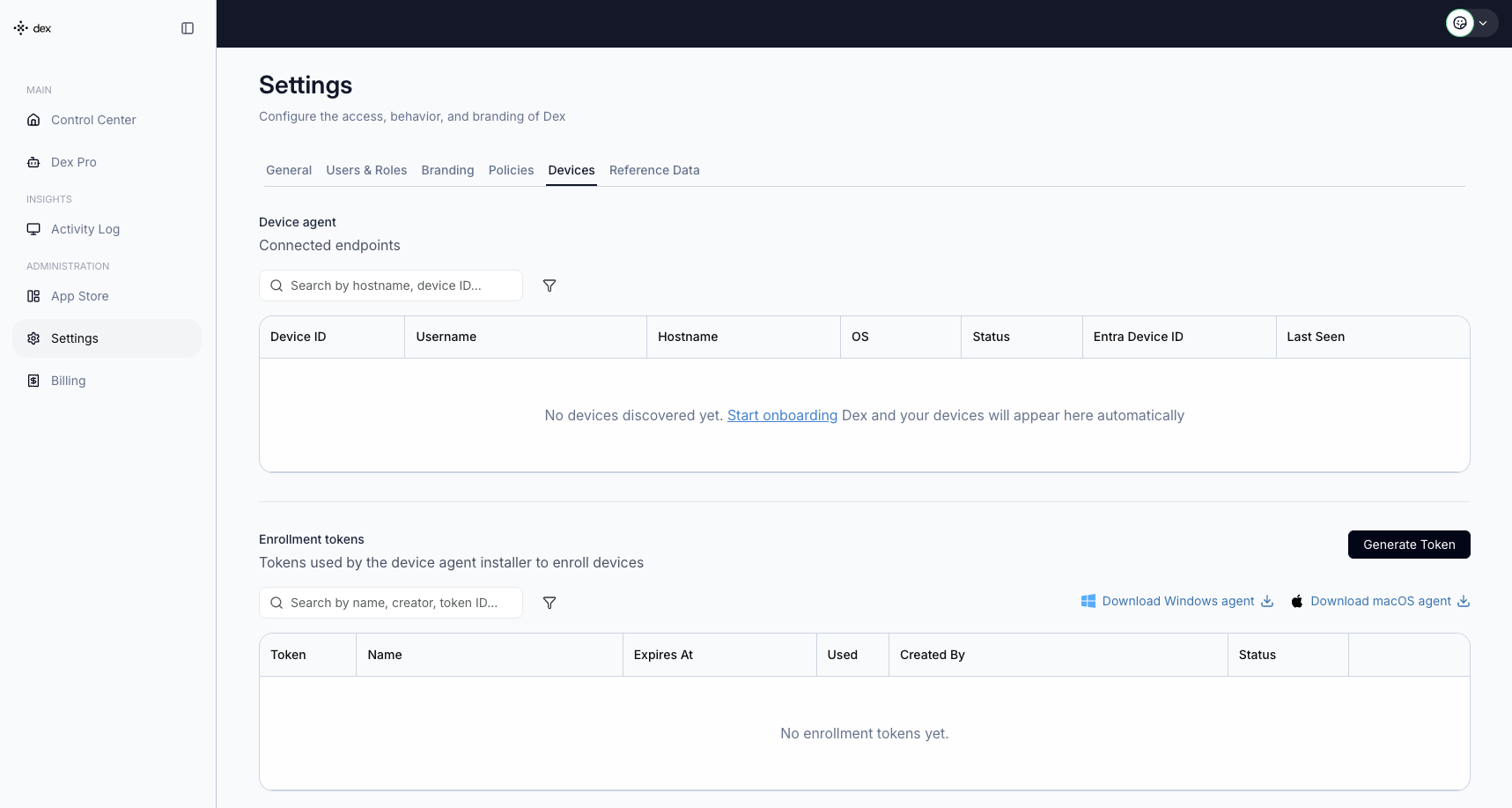
Settings → Devices on a fresh tenant: Connected endpoints is empty until devices enroll; click Generate Token under Enrollment tokens. Screenshot
Settings → Devices on a fresh tenant: Connected endpoints is empty until devices enroll; click Generate Token under Enrollment tokens.
A generated token in the list — reveal its value with the eye icon in the Token column. The same panel has Download Windows agent. Screenshot
A generated token in the list — reveal its value with the eye icon in the Token column. The same panel has Download Windows agent.
MSI download URL
https://download.dex365.ai/windows/DexDeviceAgent.msi
Registry policy key (token, optional BaseURL / UserUPNOverride as REG_SZ)
HKLM\SOFTWARE\Policies\DexDeviceAgent
How the token reaches each machine
Three mechanisms: a registry policy value under HKLM\SOFTWARE\Policies\DexDeviceAgent (best for Intune / GPO / RMM — the agent re-reads it every ~30 seconds, so token rotation needs no reinstall), the CLI (DexDeviceAgent.exe --configure --token …, best for scripted installs), or the configurator GUI that opens after an interactive install. Pick the one that matches your method below.
The MSI takes no token properties
msiexec does not accept ENROLLMENTTOKEN=, BASEURL=, or TENANTUUID= on the command line — passing them does nothing. Configuration always happens via the registry policy, --configure, or the GUI.
Install order never matters
If the MSI installs before a token is available, the service idles, logs "Waiting for enrollment configuration", and retries every 30 seconds until one appears.
Treat the token as a secret
Prefer your platform's secret store (Intune script content, NinjaOne secure fields, Datto site variables) over hardcoding it in shared scripts. After enrollment the agent exchanges it for a per-device secret and never logs either. You can Revoke a token any time from the same list.
Phase 2
Deploy
Install the MSI and deliver the token with your chosen method.
How do you want to deploy?
The steps below change based on your choice — both paths end at the same place.

Install and enroll the agent

~5 min
Now in Windows

Install on one machine — interactively with the GUI configurator, or headless from an elevated PowerShell.

How are you installing?
Configurator closed or didn't appear?
Launch it from the Start menu: Start → Configure Dex Device Agent. If it still doesn't open, the install was silent or a token is already configured — use --configure from an elevated shell instead.

Reconfigure, upgrade, or uninstall

as needed
In Windows

Reconfigure an enrolled machine from the Start menu (Configure Dex Device Agent — it detects the existing enrollment and offers Reconfigure) or with an elevated --configure. To upgrade, run the new MSI the same way: it performs an in-place major upgrade that preserves enrollment and config.yaml. Uninstall via Settings → Apps → Dex Device Agent, or silently with the command below.

Silent uninstall (the GUID is the UpgradeCode — stable across versions)
msiexec /x "{6F8B2A5C-3A1F-4C7A-9E2D-1B4F8C7A9D3E}" /qn
Uninstall removes the device secret
Both uninstall paths remove the service, all binaries, and C:\ProgramData\DexDeviceAgent\ including the device secret — the device must re-enroll if reinstalled.
Phase 3
Verify
Confirm the service is running, configured, and enrolled.

Verify the deployment

~2 min
In Windows

Use these deterministic checks after any method. The end-to-end confirmation is the device appearing in the Dex admin portal within a minute of enrollment.
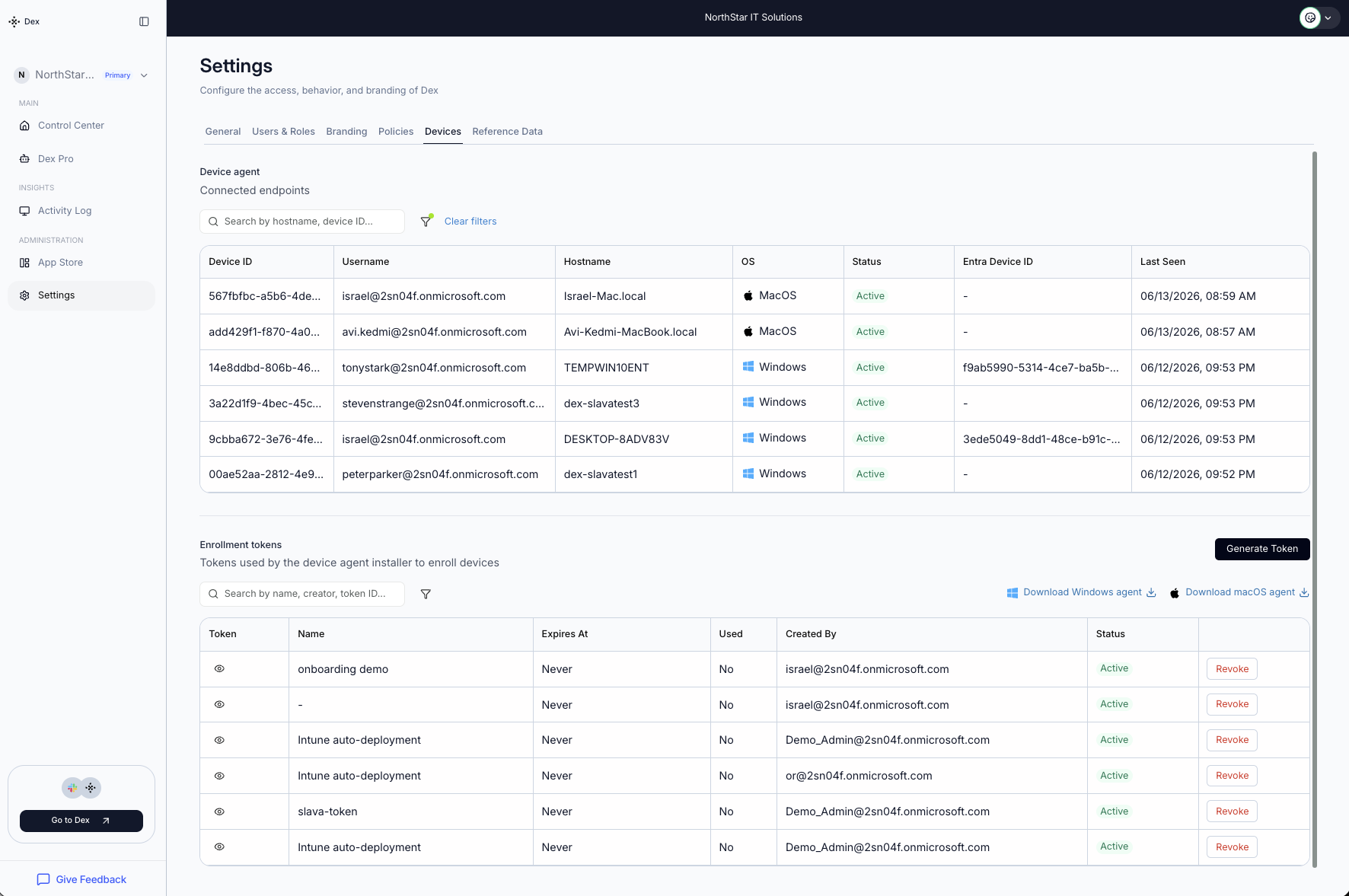
Success: enrolled machines appear under Settings → Devices → Connected endpoints (Windows rows shown Active), and used tokens are marked in the Enrollment tokens list below. Screenshot
Success: enrolled machines appear under Settings → Devices → Connected endpoints (Windows rows shown Active), and used tokens are marked in the Enrollment tokens list below.
Verification commands (PowerShell)
# 1. Installed: binary present
Test-Path 'C:\Program Files\DexDeviceAgent\DexDeviceAgent.exe'        # True

# 2. Service running
(Get-Service DexDeviceAgent).Status                                    # Running

# 3. Configured: exit code 0 iff an enrollment token or device secret exists
& 'C:\Program Files\DexDeviceAgent\DexDeviceAgent.exe' --has-config; $LASTEXITCODE   # 0

# 4. Enrolled: after successful enrollment the token is exchanged for a
#    device_secret in config.yaml (enrollment completes within ~30 s)
Select-String -Path 'C:\ProgramData\DexDeviceAgent\config.yaml' `
              -Pattern 'device_secret:\s*"?\S' -Quiet                  # True

# 5. Recent logs, if anything above failed
Get-Content C:\ProgramData\DexDeviceAgent\logs\*.log -Tail 50
"Waiting for enrollment configuration" in the log
No token has reached the machine. Check the registry policy landed (reg query HKLM\SOFTWARE\Policies\DexDeviceAgent — a value under WOW6432Node means a 32-bit script wrote it), or run --configure --token … from an elevated shell.
Enrollment 401/403 in the log
Wrong or expired token — get a fresh one from the Dex admin portal, then rotate the registry value or re-run --configure.
Service stopped or flapping
Read C:\ProgramData\DexDeviceAgent\logs\*.log — usually a proxy/firewall blocking outbound HTTPS 443 to the base URL.

Devices enrolled and reporting

The agent is installed and enrolled, and your Windows devices show up in the Dex admin portal — Dex can now run diagnostics and remediations on them. Roll the same method out to the rest of the fleet, or set up your Macs next.
