

White-label Dex with your brand
 Dex
Dex Teams
Teams- MSP Admin role in your Dex account.
- For Teams branding: Teams admin access to your Microsoft 365 tenant.
Switch to Global Site
1 minIn DexGlobal branding applies to every child tenant in your multi-tenant account. Start by switching to the Global Site context.
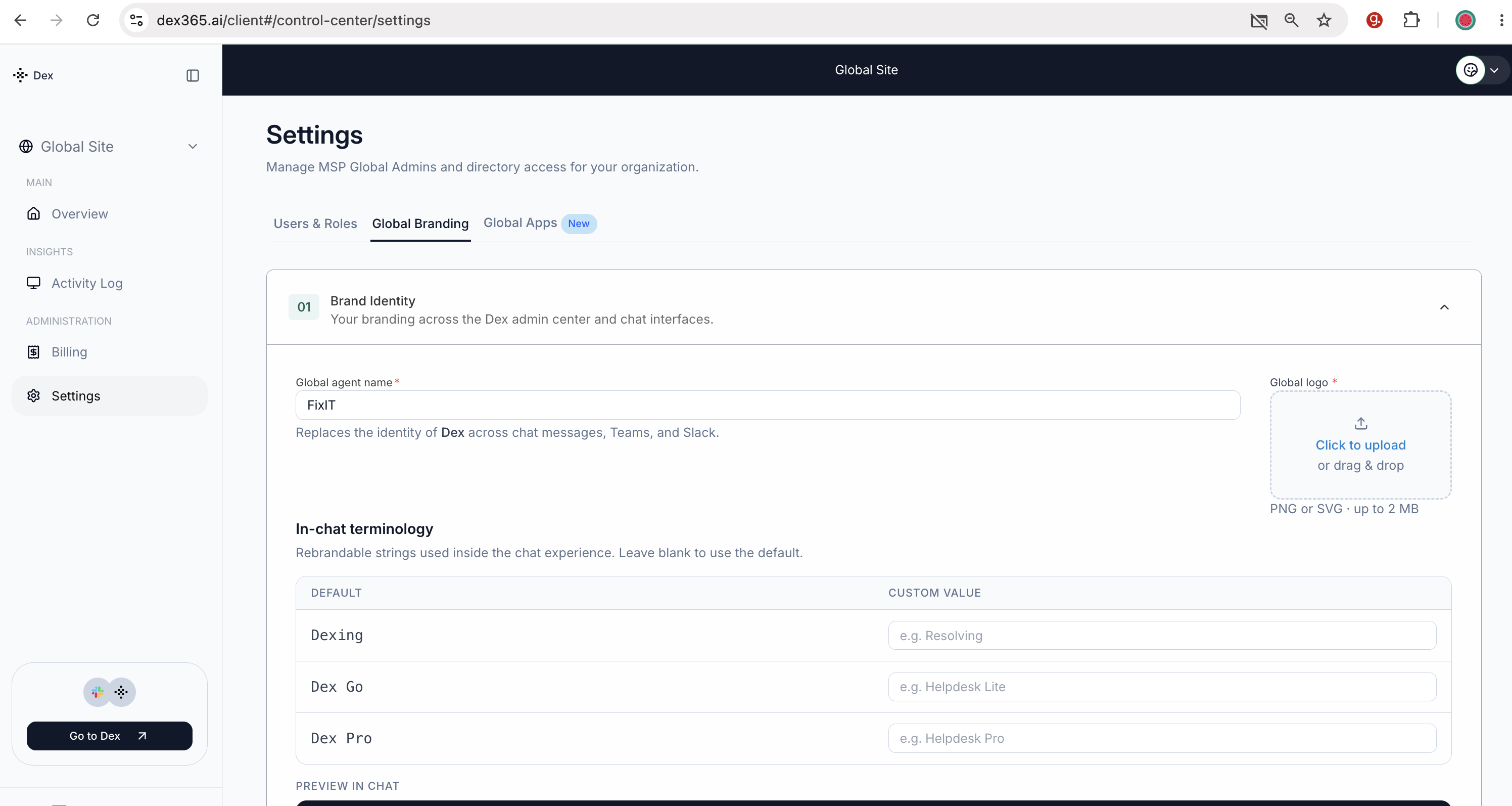
Open Global Branding settings
1 minIn DexNavigate to the Global Branding tab where you can configure your brand identity.
 Screenshot
Set your agent name and logo
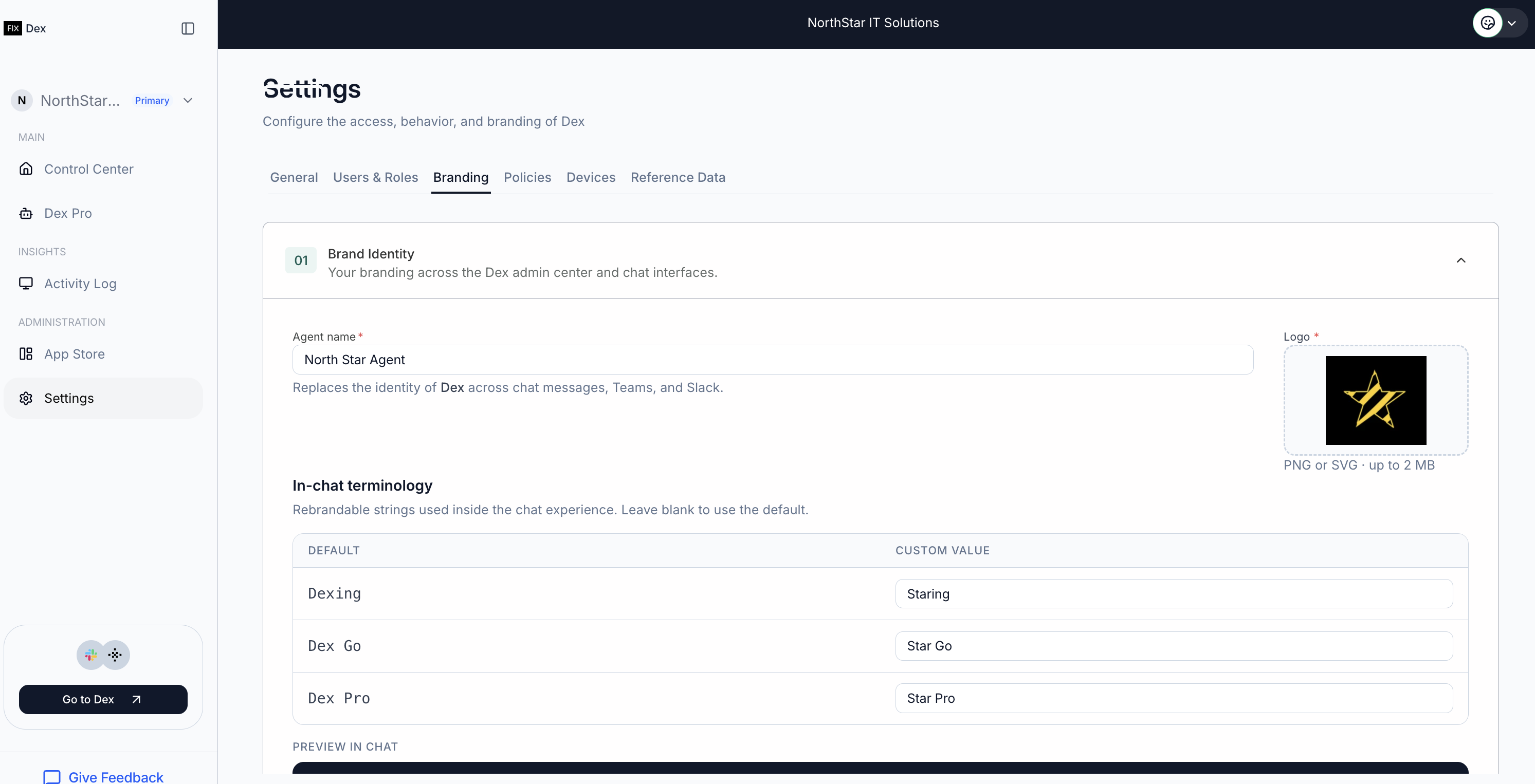
2 minIn DexUnder section 01 — Brand Identity, configure the name and logo that replace "Dex" across the admin center and the chat experience.
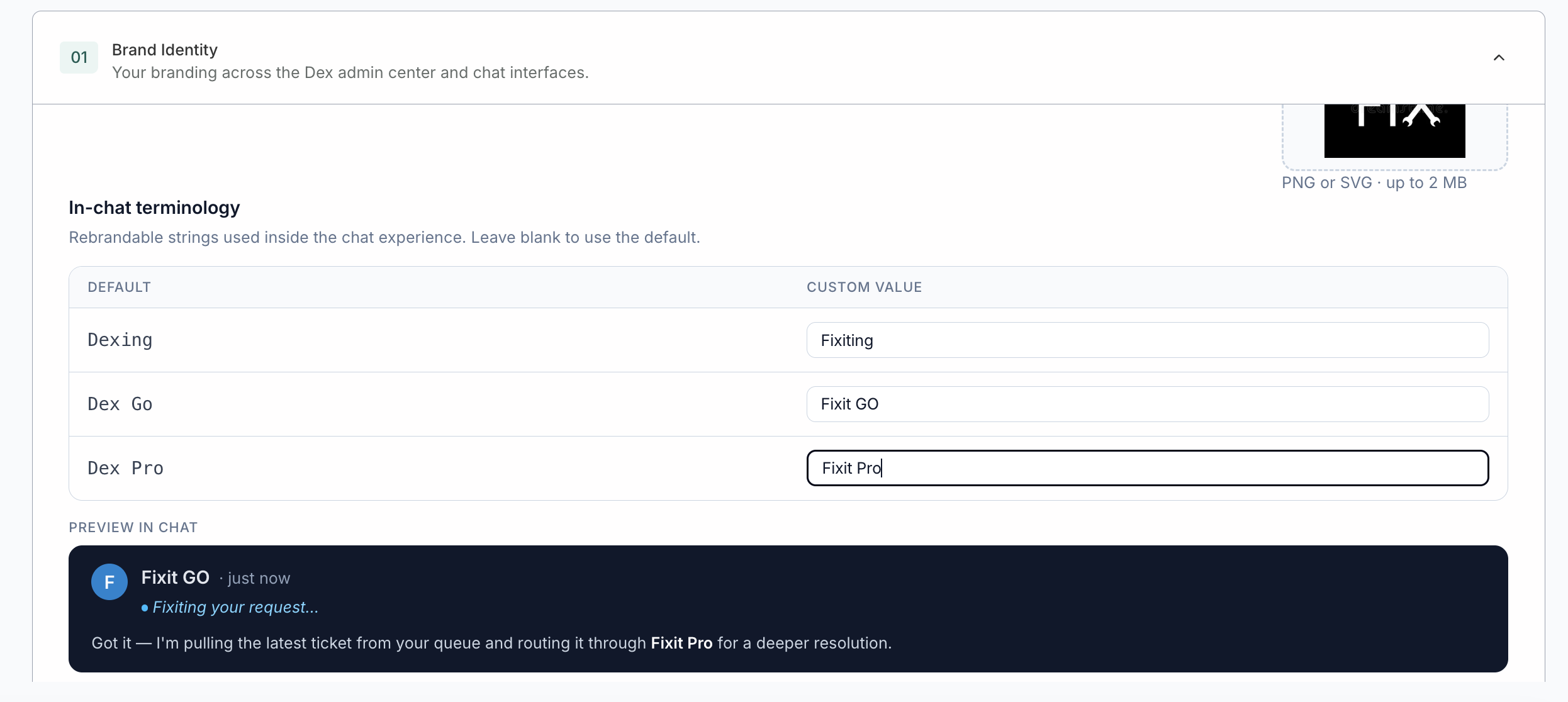
ScreenshotCustomize chat terminology and save
2 minIn DexBelow the name and logo, customize the in-chat terminology. These strings appear in the chat experience when Dex communicates with end users.
 Screenshot
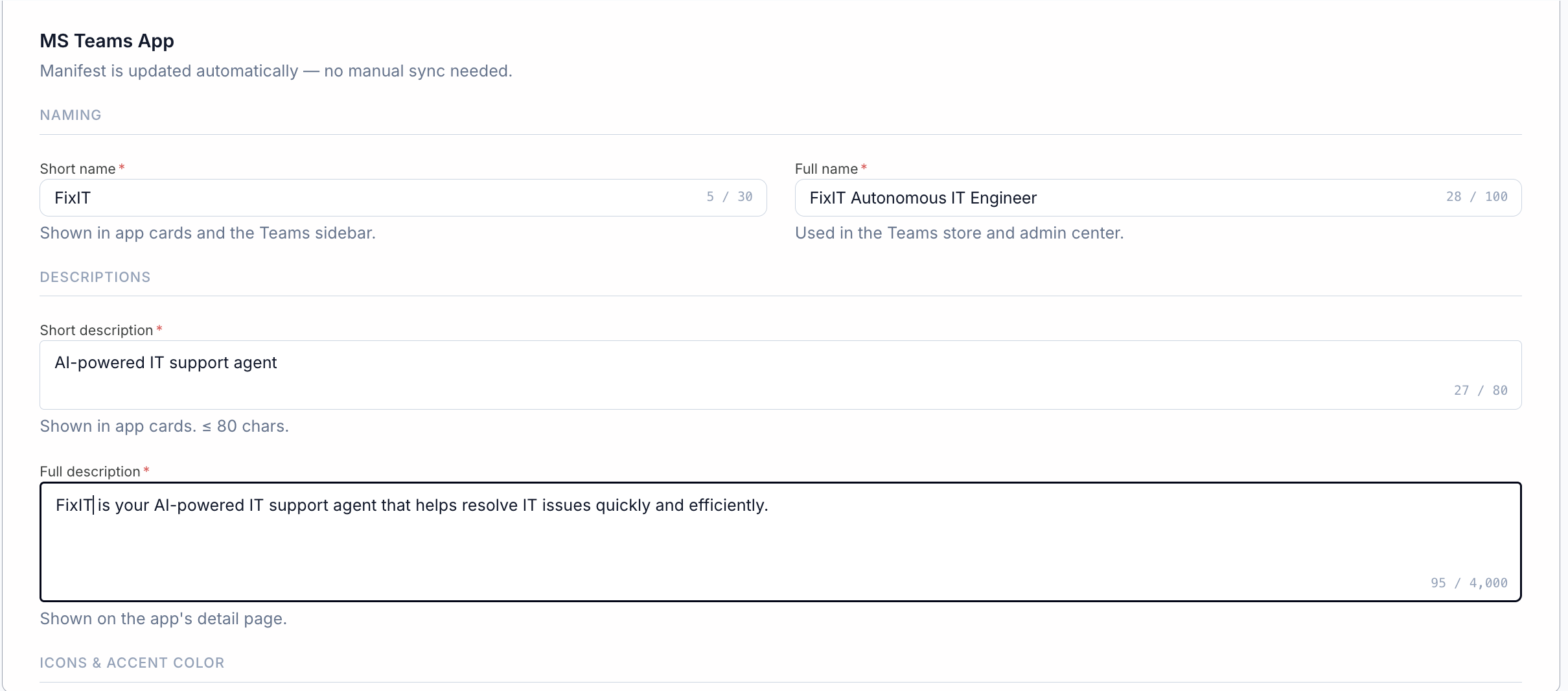
Configure the Teams app identity
2 minIn DexScroll down to section 02 — Dex Channel Branding on the same Global Branding page. This controls how the Dex app appears inside Microsoft Teams.
 Screenshot
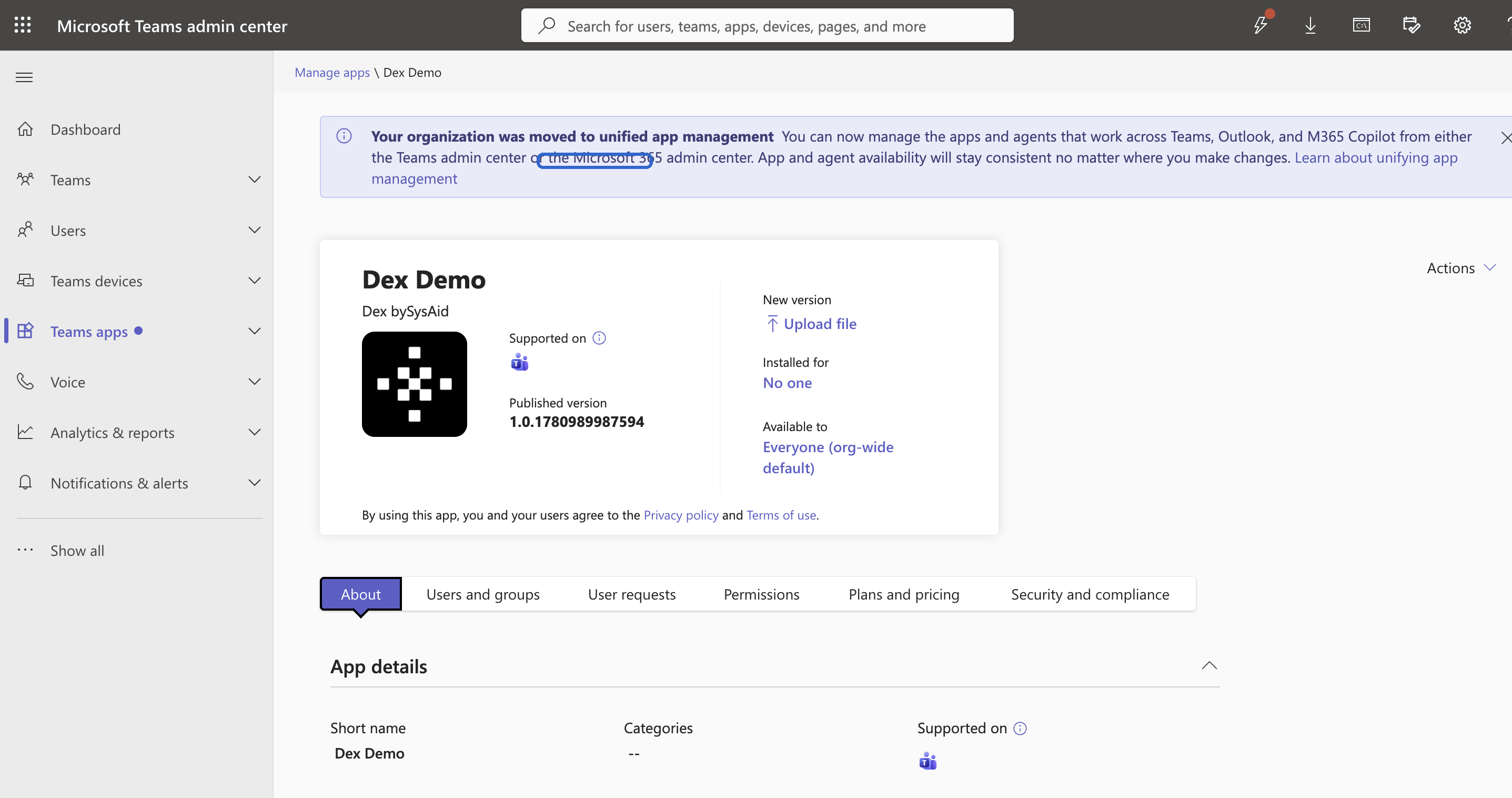
Upload the manifest in the Teams admin center
3 min Now in Teams Admin Center
Open the Microsoft Teams admin center, find the Dex app, and upload the updated manifest to push your branding live.
 Screenshot
Override branding for a single tenant
2 minNow in DexYou can override the global branding for any individual tenant. This is useful when a client wants their own brand instead of the MSP’s global branding. The per-account settings take priority over the global defaults.
 Screenshot
Your brand is live
Dex now appears with your custom name, logo, and terminology — across the admin center, chat experience, and Microsoft Teams. End users will see your brand in their next interaction.